

How To Create An Organizational Chart In Word 2013
How to Create an Organizational Chart in Word
When you want to create an org chart in Word, you don't need to create a grid in the page for object alignment and placement.
a. Add Structure
At the beginning, you should select and add the suitable organizational structure.
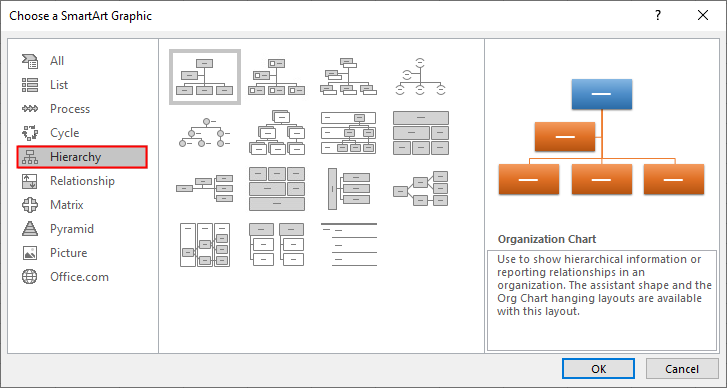
Click Insert tab, find SmartArt, then Choose a SmartArt Graphic dialog box will pop up. After that, click on Hierarchy category in the left pane and choose the example structure that you want to use.
b. Add Text
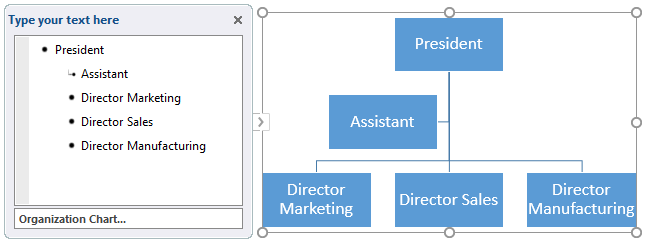
After adding the organizational structure, you should fill in relative information like positions on the shapes to better illustrate the relationships in the organization, because every shape in the org chart represent a person in the organization and what position he/she stands in.
To add text on the shapes, there are 2 ways to achieve that:
- Click the shape and edit text directly;
- Click the triangle icon on the left side of the org chart, and you can edit text in the pop-up window.
c. Add Shapes
Normally, the default number of shapes in the org chart example is inadequate for most of us. Thus, you need to add shapes into the org chart.
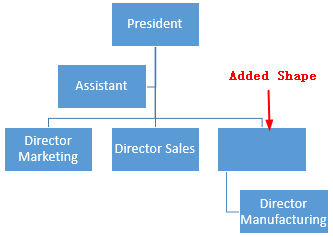
Select the shape, go to Design tab, choose Add Shape and select a way to add a shape based on your needs.
For example, if you choose the shape of Director Manufacturing and the option "Add Shape After", then the newly-added shape will be added on the right side of Director Manufacturing box.
If you choose Add Shape Above, then the blank shape will replace the Director Manufacturing box, the Director Manufacturing will move to the lower level and become the subordinate of the person who is in the blank shape.
d. Move Shapes
Choose a shape, the Design tab of the SmartArt Tools will appear on the ribbon.
For moving shapes, you can use Promote/Demote and Move Up/Move Down functions on the Design tab to achieve different effects.

To promote/demote a shape:
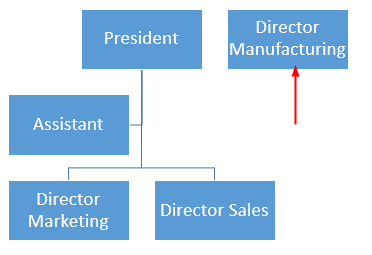
Select Director Manufacturing, choose Promote and the level of this shape will be increased by 1 level, so the Director Manufacturing now is at the same level as the President.
On the contrary, when you select Director Manufacturing, choose Demote and the level of this shape will be decreased by 1 level, so the Director Manufacturing is at the same level as other directors.
To move up/move down a shape:
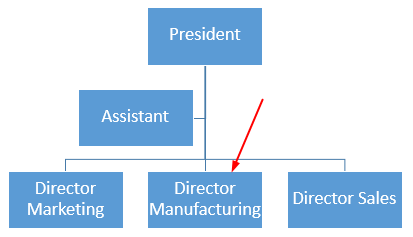
Select Director Manufacturing, choose Move Up and this shape will be moved horizontally, so the Director Manufacturing now is in front of Director Sales.
Instead, when you select Director Manufacturing, choose Move Down and the Director Manufacturing will be behind Director Sales.
e. Format an Org Chart
When you select a shape or the whole org chart, the Design and Format tabs of SmartArt Tools will pop up on the ribbon.
On the Design tab, you can change the chart layouts, theme colors, SmartArt styles, which are all for the whole org chart.

On Format tab, you can change shape sizes, shape styles, WordArt styles and arrangement, which are for all shapes.

How to Create an Organizational Chart in EdrawMax
It will spend much time in setting up the organizational structure when making an org chart in Word and it also requires many additional steps to build a complete diagram in this program.
Whereas, I believe that using the professional org chart creator -- EdrawMax -- could become a wonderful choice for you. You don' t need to consume extra time in making preparation. With pre-made templates and abundant symbols, EdrawMax can save your time and energy to create high-quality org charts.
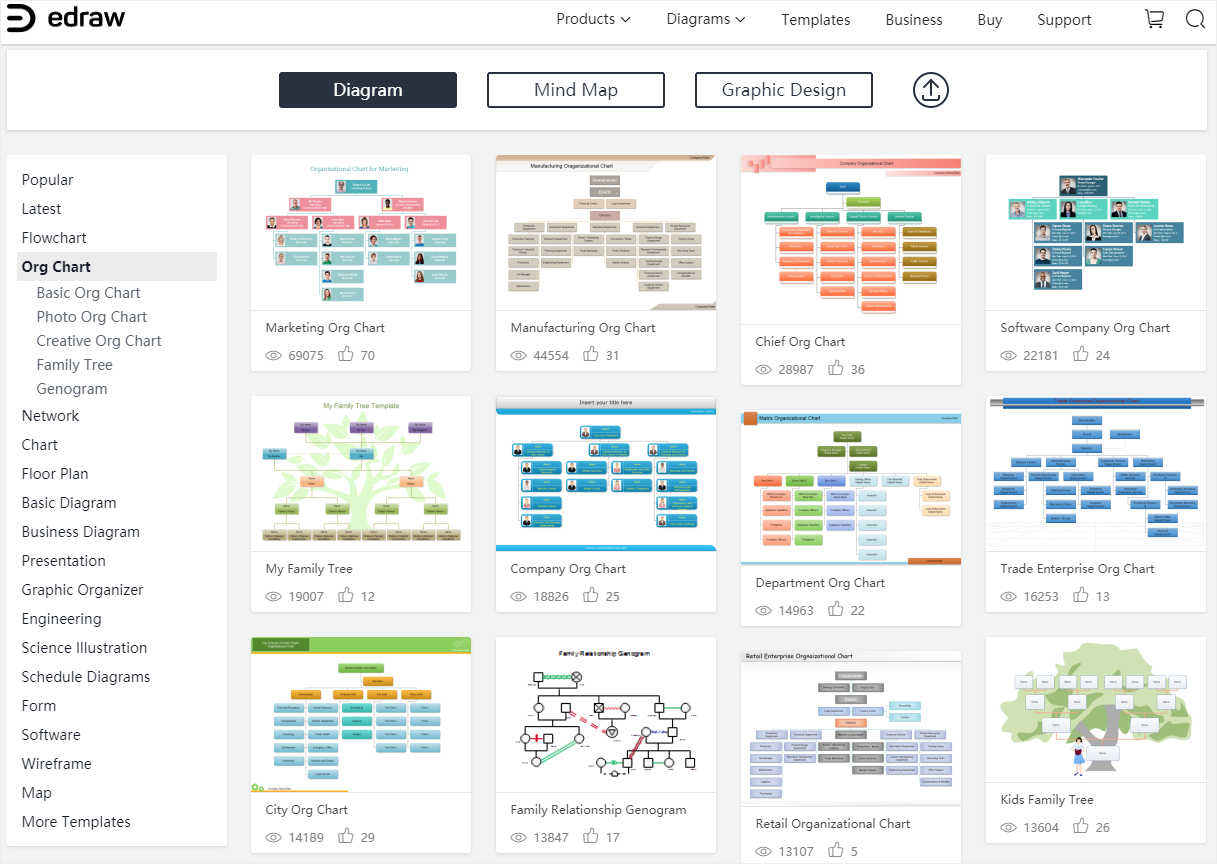
The steps of creating an org chart in EdrawMax:
- Enable EdrawMax and select a desired org chart template in the Organizational Chart gallery.
- Double-click the template to enter into the drawing interface.
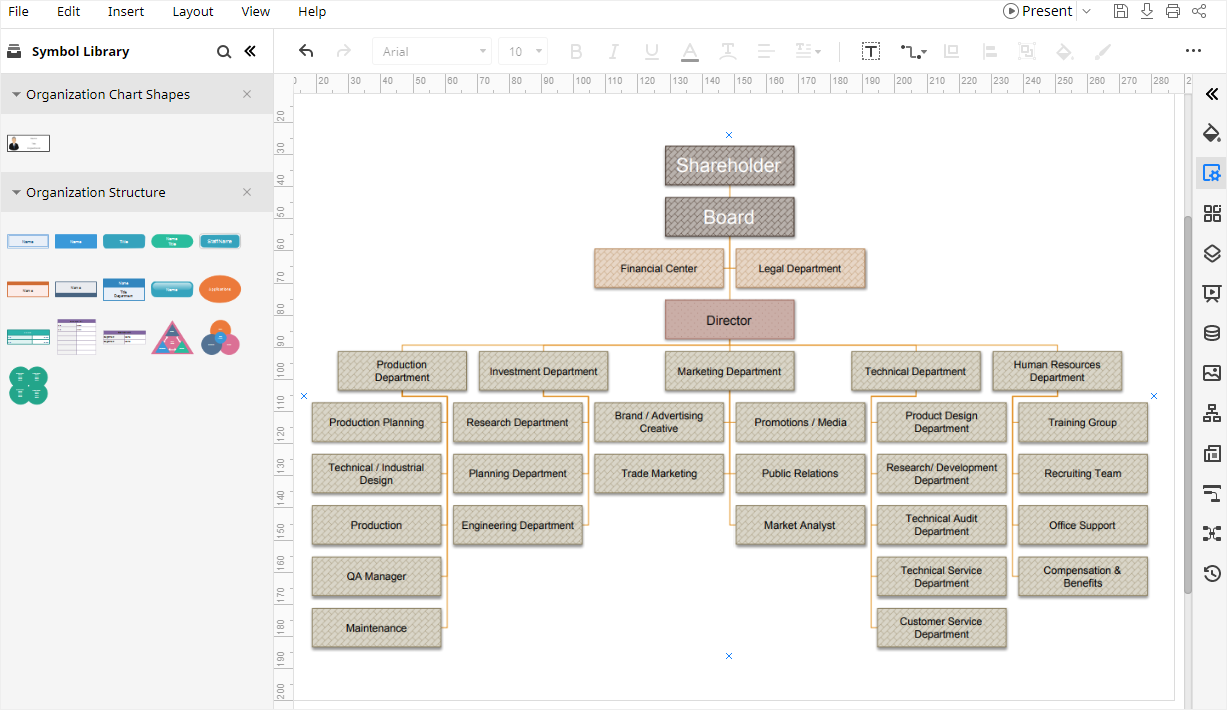
- Modify and customize the template to create your own org chart with special drawing tools, including changing photos, changing display options, importing org data, etc.
- Save and export the org chart in your desired file formats.
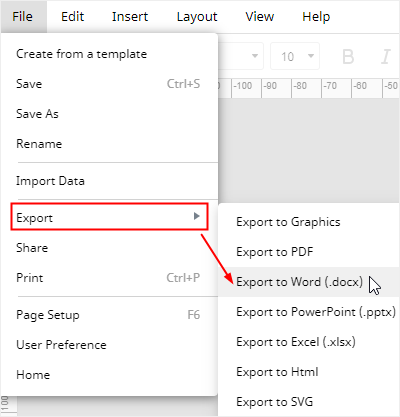
How to Export an EdrawMax diagram to Word
You can build creative and complicated diagrams in EdrawMax and export them into editable Word files. Go to File tab, click Export > Export to Word, and the system will automatically save and download the created org chart as a Word file. So you can get an org chart in Word format. All the Microsoft Office files exported from EdrawMax are editable.
Thus, there will be less trouble or difficulty in creating an org chart in Word with the help of EdrawMax and you can freely share your diagrams made by EdrawMax with your colleagues or friends who don't use EdrawMax.
In addition, you and your friends are able to edit and modify the exported org chart in Microsoft Word (only for 2013 or above version) directly.
Related Articles
How To Create An Organizational Chart In Word 2013
Source: https://www.edrawmax.com/org-chart/how-to-create-an-organizational-chart-in-word/
Posted by: wilkeswhoundle.blogspot.com
0 Response to "How To Create An Organizational Chart In Word 2013"
Post a Comment